


Welcome to the Hub of Tech Insights & Innovation
Welcome to our IT blog — your hub for the latest insights, trends, and practical tips in technology. Whether you’re a developer, system admin, tech entrepreneur, or just passionate about innovation, you’ll find valuable content here to sharpen your skills and stay ahead of the curve.
From cybersecurity best practices and cloud computing to coding tutorials and tech reviews, we cover it all with clarity and real-world relevance. Dive in, explore, and let’s build the future of tech together.
Knowledge Hub
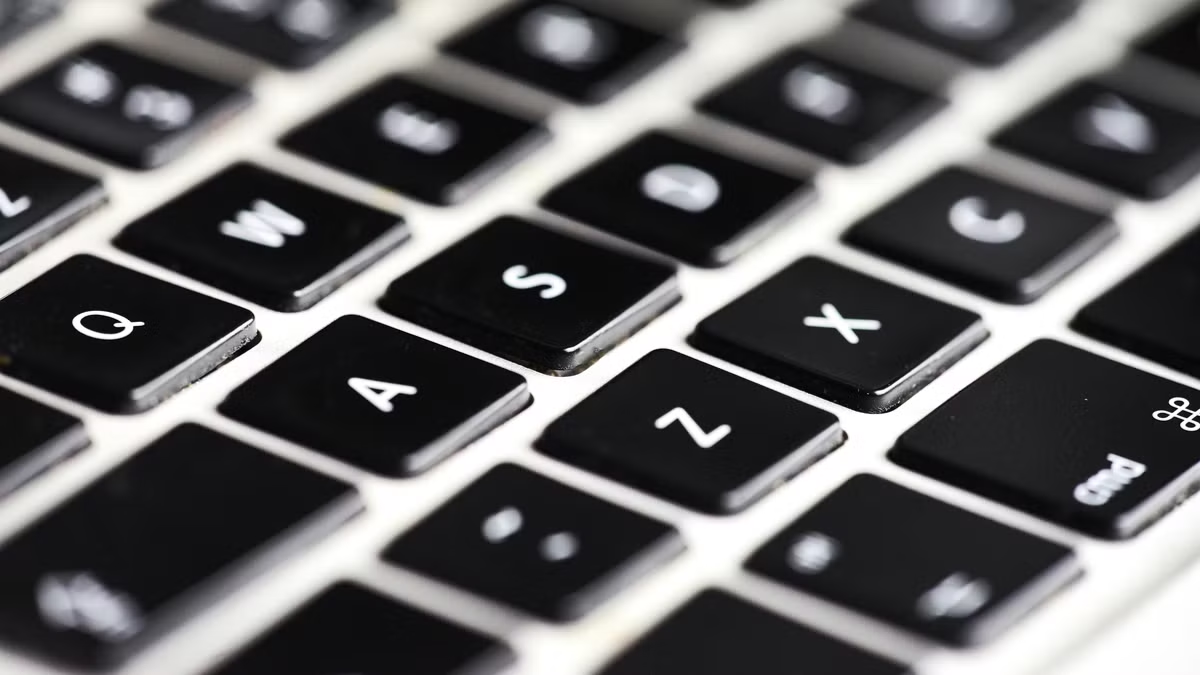
Keyboard shortcuts for Windows & Mac devices.
On Windows devices, everyday tasks become much faster when you use shortcuts like copy and paste with Ctrl + C and Ctrl + V, or switch between open applications using Alt + Tab. If you want to quickly minimize all windows and jump to your desktop, Windows + D does the trick. And when it’s time to walk away, Windows + L will lock your screen instantly to keep your work secure.
Mac users have their own shortcut superpowers. The Command key (⌘) is central to most of them. For example, Command + C and Command + V work the same way for copying and pasting, while Command + Tab lets you flip through open apps with ease. If you’re looking for something on your Mac, Command + Space opens Spotlight Search, and for quick security, Control + Command + Q locks your screen in a flash.

How to create a secure password
Your password is the first line of defense between your personal information and hackers, which is why creating a secure one is so important. A strong password should be long, ideally twelve to sixteen characters, and include a mix of uppercase and lowercase letters, numbers, and special symbols. You should avoid using personal details like your name, birthday, or anything that can be guessed from your social media, and instead try creating a passphrase made of random, unrelated words such as GiraffeCoffeeLemon77?, which is both easier to remember and harder to crack.
It’s also important never to reuse passwords across different accounts, because if one account is compromised, the rest quickly become vulnerable. Since remembering multiple strong passwords can be overwhelming, using a password manager is a safe way to generate and store them securely. Finally, no matter how strong your password is, always enable two-factor authentication for an extra layer of protection.

How to keep your hard drive secure
Your hard drive is the storage center of your computer, and taking care of it helps your system last longer. Keep your computer clean inside and out so dust doesn’t cause overheating. Use Windows Disk Cleanup to remove junk files, and try not to fill your drive completely, leaving space helps everything run smoother.
If you’re using an older hard drive with moving parts, running the defrag tool can speed things up. For newer SSDs, focus instead on keeping them updated and avoiding unnecessary writes. Always back up your important files, because even a healthy drive can fail without warning.
The End of Windows 1O
Microsoft has confirmed that Windows 10 will officially reach the end of its support lifecycle on October 14th, 2025. After this date, the operating system will no longer receive security updates, patches, or technical assistance. Although devices running Windows 10 will still operate, they will gradually become more vulnerable to security threats, malware, and software compatibility issues as technology continues to evolve.
To remain protected, it is important to plan ahead. Where possible, upgrading to Windows 11 is the most effective way to ensure your computer remains secure and fully supported. If your current device is not compatible, it may be necessary to consider investing in new hardware to guarantee continued reliability and peace of mind. Need some guidance? We are here to help.
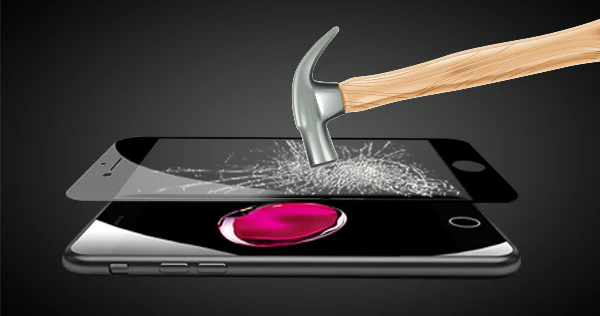
When your screen has just been repaired, it’s in its best condition, clear, smooth, and free from scratches. That makes it the perfect time to protect your investment. A screen protector doesn’t just stop scratches from keys or coins; it can also absorb impact from accidental drops, reducing the risk of your screen cracking again. Think of it as an inexpensive layer of insurance that keeps your repair looking new for longer. The truth is, even the most careful phone owners experience the occasional slip, and having that extra shield often makes the difference between a close call and another costly repair. At iMend, you can grab yourself one of our durable screen protectors with every screen repair on your iPhones!
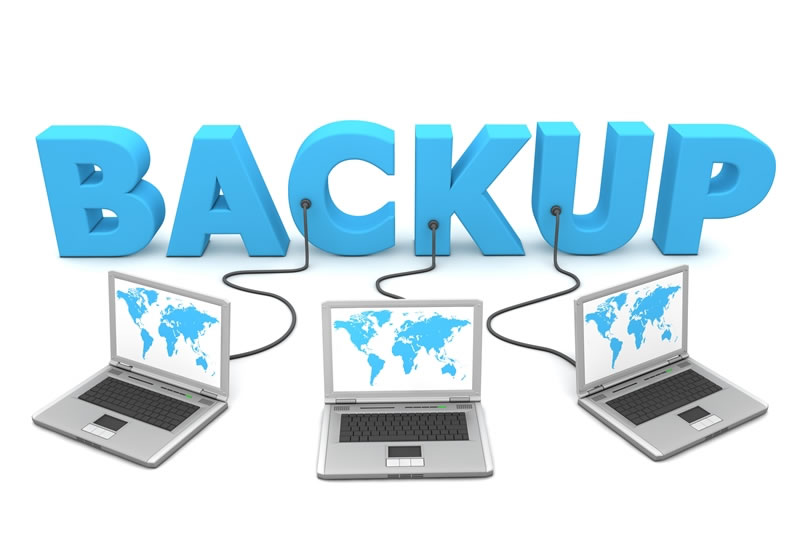
How to back up your data
If you’re on an iPhone, head into your Settings, tap your name, then iCloud, and turn on iCloud Backup. You can even choose “Back Up Now” to instantly save everything as it is today. On Android devices, just open Settings, go to Google, then Backup, and make sure it’s switched on. This keeps your photos, contacts, and app data safely synced to your account.
For laptops, the process is just as easy. On a Mac, you can connect an external hard drive and set up Time Machine to handle backups automatically, or save important files to iCloud Drive for easy access anywhere. If you’re using Windows, open your Backup settings and use File History to save your files to an external drive, or sync key folders with OneDrive for extra peace of mind.
Over the past decade, businesses and developers have rapidly embraced cloud services for their scalability, ease of deployment, and minimal infrastructure management. But in recent years, a subtle yet significant shift has started: the resurgence of self-hosting.
So, what’s behind this trend, and why are tech-savvy teams re-evaluating the cloud-first mindset?
Over the past decade, businesses and developers have rapidly embraced cloud services for their scalability, ease of deployment, and minimal infrastructure management. But in recent years, a subtle yet significant shift has started: the resurgence of self-hosting.
So, what’s behind this trend, and why are tech-savvy teams re-evaluating the cloud-first mindset?
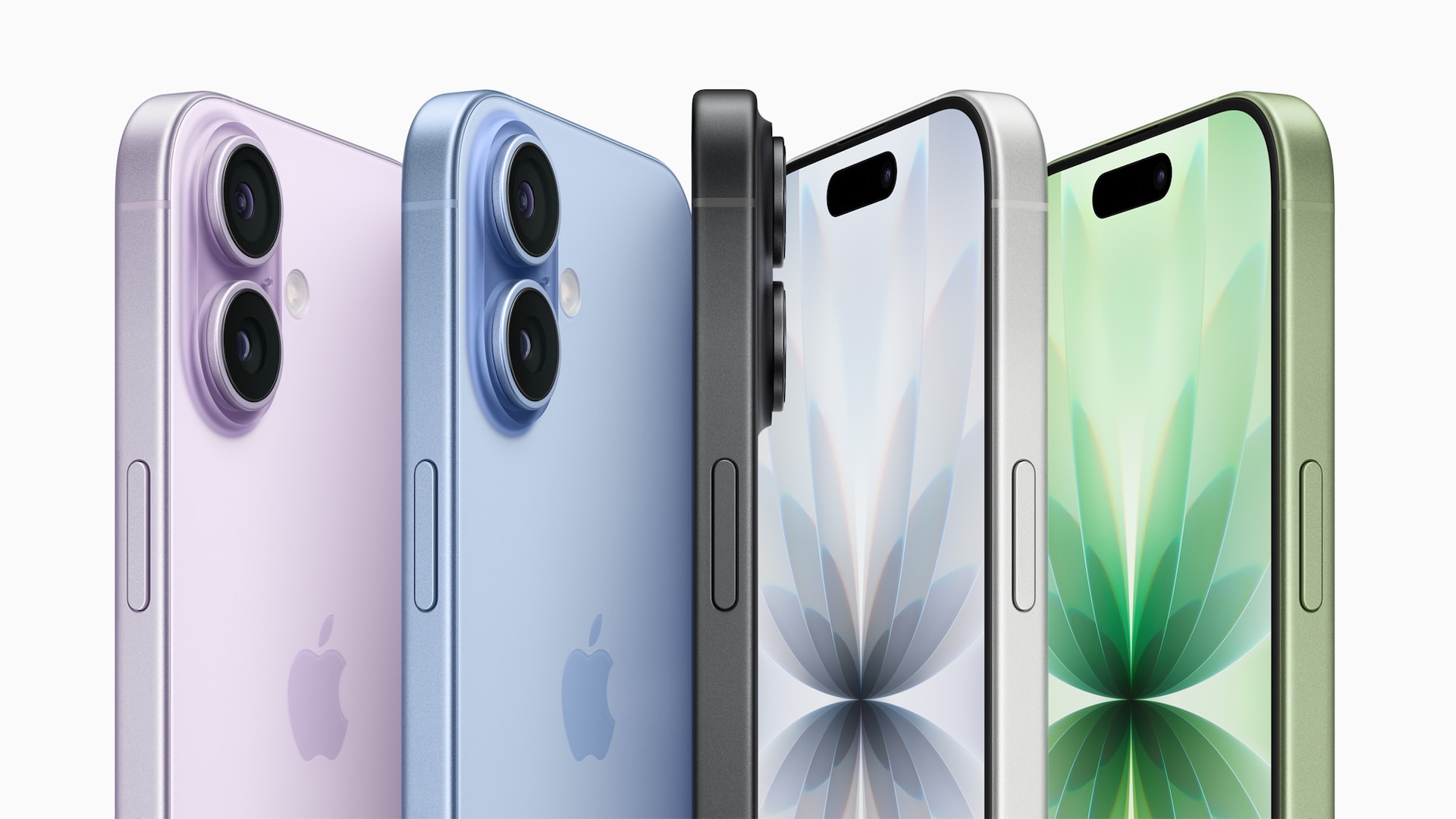
Why the iPhone 17 base model is such good value
The base iPhone 17 offers outstanding value by delivering premium performance and features at a more accessible price. It now includes 256 GB of storage as standard, double the previous base model, without raising the cost, making it perfect for users who want top-tier performance without stretching their budget.
Its 6.3-inch Super Retina XDR display features a smooth 120 Hz ProMotion refresh rate, providing ultra-fluid scrolling, vibrant colours, and an immersive viewing experience that rivals the Pro models. Powered by Apple’s A19 chip, the iPhone 17 handles multitasking, gaming, and photography effortlessly, while the upgraded dual 48 MP camera system delivers stunning clarity and detail. With strong battery life, premium durability, and seamless integration with the Apple ecosystem, the iPhone 17 base model stands out as one of the best value smartphones available.

External Hard Drive vs. Cloud Storage: Which Is Better for You?
Choosing between an external hard drive and cloud storage depends on how you use your files. External drives offer full control, fast transfers, and no monthly fees, but they can fail or be lost. Cloud storage lets you access your files from anywhere and backs them up automatically, though it relies on internet access and often includes subscription costs.
If you’re considering the cloud, there are great free options: Google Drive offers 15 GB, Dropbox gives 2 GB, and Box provides 10 GB of free space to start. Each makes sharing and syncing simple across devices.
For most people, a mix of both works best, use an external drive for large or sensitive files and the cloud for everyday access. That way, your data stays safe, secure, and always within reach.

Environmental Impact: Why Choosing Repair Over Replacement Matters
Choosing to repair your device instead of replacing it is one of the simplest ways to help the environment. Every repair reduces electronic waste, conserves valuable natural resources, and lowers the carbon footprint created by manufacturing new devices. At iMend Ltd, we believe small actions make a big difference – by extending the life of your phone, tablet, or laptop, you’re saving money while supporting a more sustainable, circular economy. Repairing your tech keeps it working longer, prevents waste, and helps build a greener future for everyone. reach.

Why Gaming Consoles Need Maintenance Too (and What You Can Do)
Gaming consoles often get overlooked when it comes to maintenance, yet they work just as hard as any computer or smartphone. Over time, dust can build up inside the vents and fan system, causing overheating, noisy operation, and performance issues. Software updates are equally important, as they fix bugs, improve stability, and enhance security. Even controllers need regular cleaning and care to prevent joystick drift or unresponsive buttons.
By keeping your console clean, well-ventilated, and up to date, you can extend its lifespan and enjoy smoother gameplay for years to come. At iMend, we offer professional console servicing, from internal cleaning and fan replacements to repairs and diagnostics, helping gamers keep their systems running like new.

How To Tell If Your Laptop Needs Maintenance (or an Upgrade)
Laptops naturally slow down over time, but many people assume this means they need to buy a brand-new device. In reality, most performance issues are caused by things like ageing components, lack of maintenance, or software problems—many of which can be fixed quickly and affordably. If your laptop feels sluggish when opening apps, takes longer than usual to start up, or gets hot and noisy even with light use, it may simply need a service. Dust build-up inside the system can cause overheating, while an old hard drive or low RAM can bottleneck performance. A basic clean-up or replacing worn components can bring an older laptop back to life. However, there are times when an upgrade is the smarter long-term solution. If your laptop still uses a traditional HDD instead of an SSD, or it struggles to run modern software even after maintenance, upgrading to faster storage or additional memory can make a dramatic difference—often more than people expect. In many cases, an upgraded laptop can perform almost like new at a fraction of the cost of replacing it. Whether it’s maintenance or a hardware refresh, identifying the early signs helps you avoid bigger problems like data loss, overheating, or complete system failure. A quick diagnostic from a professional can confirm exactly what your device needs to keep running smoothly.
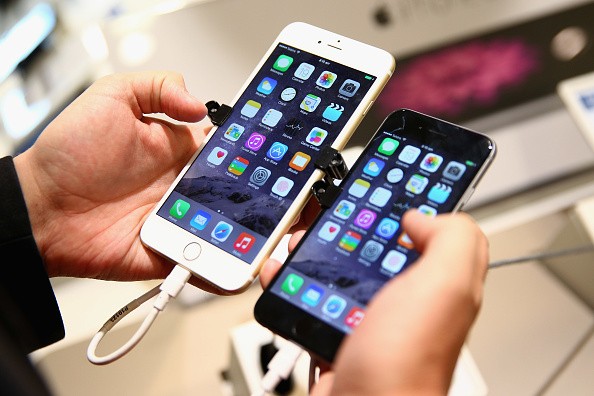
Top Mobile Device Fixes You Can Try Before Visiting a Repair Shop
When your phone starts acting up, it’s easy to assume the worst, but many common mobile issues can be resolved with a few simple steps before you book a repair. Problems like overheating, freezing, battery drain, or an unresponsive touchscreen are often caused by everyday things such as overworked apps, clogged charging ports, or outdated software. Start by giving your device a quick restart, as this clears temporary glitches and frees up memory. If your phone is overheating, close background apps, remove its case, and let it cool down naturally. For touchscreen issues, gently clean the screen and ensure your hands are dry. Slow performance or random shutdowns can often be improved by updating your software and deleting unused apps. And if your phone has been exposed to water, turn it off immediately, dry it thoroughly, and avoid charging it until you’re sure it’s completely moisture-free. These simple fixes can often save you time and stress, but if the issue continues or your device shows signs of internal damage, it’s best to let a professional take a closer look. Our expert technicians are always on hand to diagnose and repair your device quickly and reliably, so you can get back to using your phone with confidence.

Smart Device-Use Habits & Risk Awareness
In today’s always-connected world, our phones, laptops, and smart home devices have become extensions of ourselves, which makes developing smart usage habits more important than ever. Simple practices like reviewing app permissions, installing updates promptly, and avoiding the use of administrator accounts for everyday tasks can dramatically reduce your risk exposure. These habits don’t require technical expertise; they’re small, mindful choices that keep your devices running smoothly and your information better protected. As cyber-threats evolve, staying proactive is far more effective than trying to fix problems after they occur. Risk awareness is just as crucial. Many digital threats still begin with a single careless click, so taking a moment to assess suspicious emails, unusual links, or unexpected attachments can prevent major issues. The same applies to your network—securing your Wi-Fi with strong passwords and modern encryption helps block unauthorised access before it even starts. By blending careful daily habits with a healthy sense of caution, you create a safer environment not only for yourself but for everyone sharing your digital space.

Enable Multi-Factor Authentication for Instant Security Protection
accounts is by enabling Multi-Factor Authentication (MFA). Relying on a password alone leaves you vulnerable to phishing, data leaks and automated hacking tools that can guess or steal login details. MFA adds a second step—such as a code from an authenticator app or a prompt on your phone—making it dramatically harder for attackers to access your information. Even if someone manages to obtain your password, they can’t get in without that additional verification.
Turning on MFA is simple and usually takes less than a minute. Start by visiting the security or account settings of your most important services, such as email, cloud storage, banking and business tools. Select the option for “Two-Step Verification” or “Multi-Factor Authentication,” then choose an authenticator app like Google Authenticator, Microsoft Authenticator or Authy for stronger protection than SMS codes. Once set up, you’ll receive a quick prompt each time you log in from a new device—adding a layer of security that’s almost effortless but incredibly effective. This small step can prevent the vast majority of common account breaches and gives you peace of mind knowing your data is significantly safer.

Travelling for Christmas? Protect Your Tech on the Go
Christmas travel often means busy trains, crowded airports, and unfamiliar places, all of which increase the risk of losing or damaging your tech. Before you set off, make sure your devices are protected with strong passcodes or biometric locks, and enable tracking features like Find My iPhone or Find My Device. It’s also wise to back up your data before travelling, just in case your phone or laptop is lost or stolen along the way.
Be cautious when using public Wi-Fi during your journey, as unsecured networks can expose your personal information. Avoid accessing sensitive accounts on public connections and never use unknown USB charging ports, which can pose security risks. Keeping your devices physically secure, using trusted chargers, and staying aware of your surroundings can help ensure your tech, and your festive plans, stay safe while you travel this Christmas.
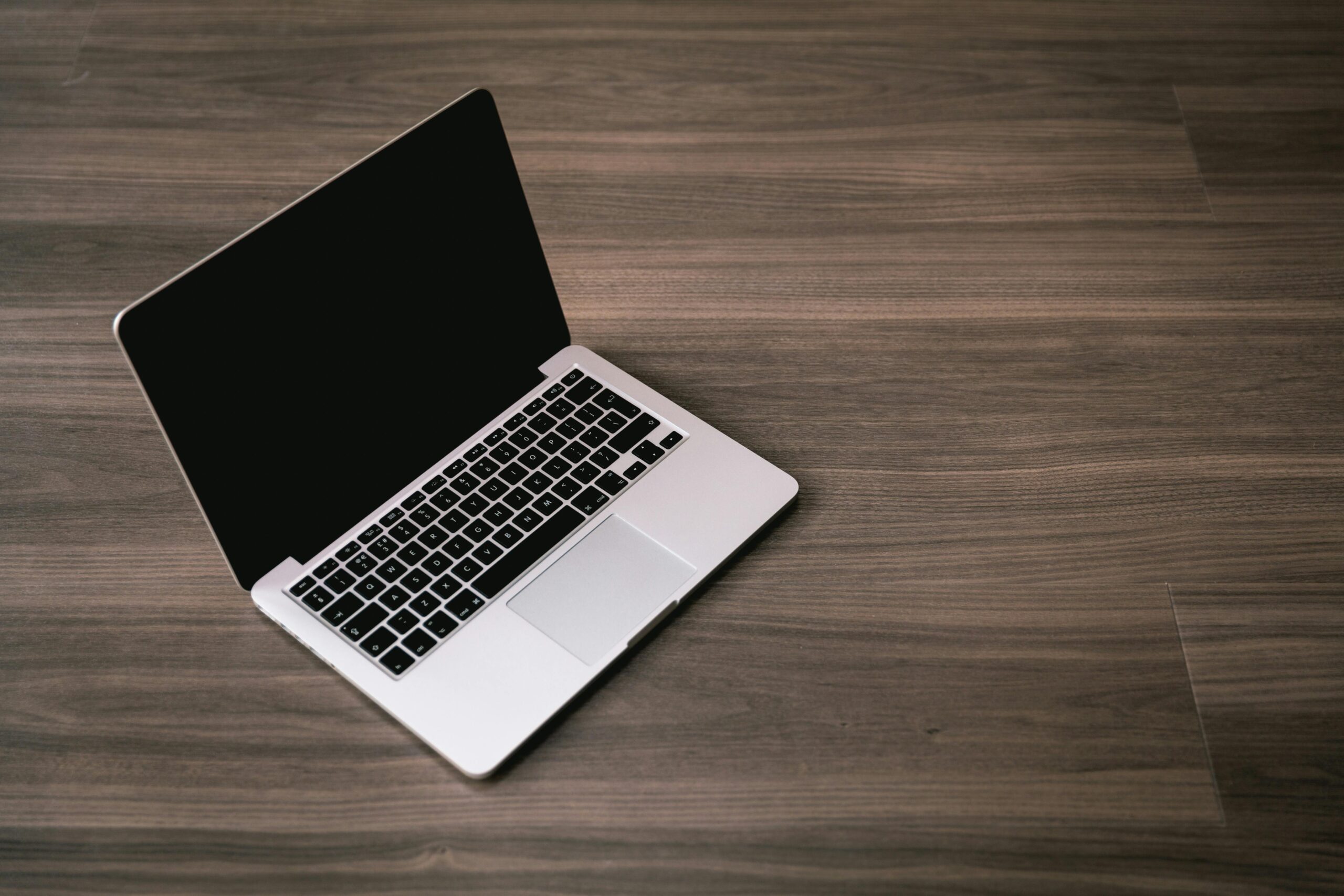
Quick Ways To Speed Up Your Laptop
If your laptop feels slow, a few simple changes can often improve performance. Restarting your device regularly helps clear temporary files and refresh system memory, especially if it’s usually left running for long periods. Freeing up storage space can also make a big difference. Deleting old files, uninstalling unused programs, and moving large items to cloud or external storage helps your laptop run more efficiently. Keeping your software up to date is important for both speed and security. Updates often include performance improvements, while regular security scans ensure malware isn’t slowing your system down in the background. Finally, reducing the number of browser tabs and extensions you use can quickly boost performance. If your laptop is still slow after trying these tips, it may be worth getting it checked by a professional.